
Maintaining a high-functioning digital infrastructure remains the primary objective for modern professionals seeking to avoid the logistical delays associated with onsite technical repairs. Establishing a baseline of technical readiness can significantly reduce the time spent troubleshooting and accelerate the resolution of complex software conflicts. Understanding the mechanics of remote intervention allows for an immediate response to system failures and ensures that productivity remains uninterrupted during critical project cycles. Discovering the strategic advantages of pre-call preparation transforms a standard support request into an efficient, precision-guided recovery operation.
The Foundation of Remote Readiness
The initial step in managing any technical disruption involves stabilizing the physical and network environment to facilitate a successful remote connection. You can start by verifying that the hardware remains powered and the internet connection provides sufficient bandwidth for high-definition screen sharing and data transfer. Checking the status of peripheral devices and ensuring that the operating system is not currently locked in a background update cycle can prevent common connection errors. These simple actions verify that the system is responsive and capable of hosting a secure remote session without unexpected interruptions or hardware-related dropouts.
Developing a clear inventory of the symptoms occurring on the device enables a more effective collaboration with a remote specialist. You can document specific error codes and record the sequence of events leading up to the malfunction to provide a comprehensive roadmap for the technician. This proactive approach eliminates guesswork and allows the support professional to bypass basic diagnostic phases and proceed directly to advanced resolution strategies. Enhancing the communication flow between the user and the support provider significantly increases the probability of a first-call resolution and optimizes the total time invested in the repair process.

Unlocking Microsoft Quick Assist
Leveraging built-in tools like Microsoft Quick Assist represents the most efficient method for obtaining immediate technical help without the need for third-party software installations. This utility provides a secure, encrypted tunnel between two Windows devices, allowing a trusted expert to view your screen and take control of the mouse and keyboard remotely. By simply typing "Quick Assist" into the Start menu, you can enter a security code provided by your technician to initiate a high-speed support session. This streamlined process removes the friction of traditional support methods and offers a professional-grade solution for diagnosing complex system errors in real-time.
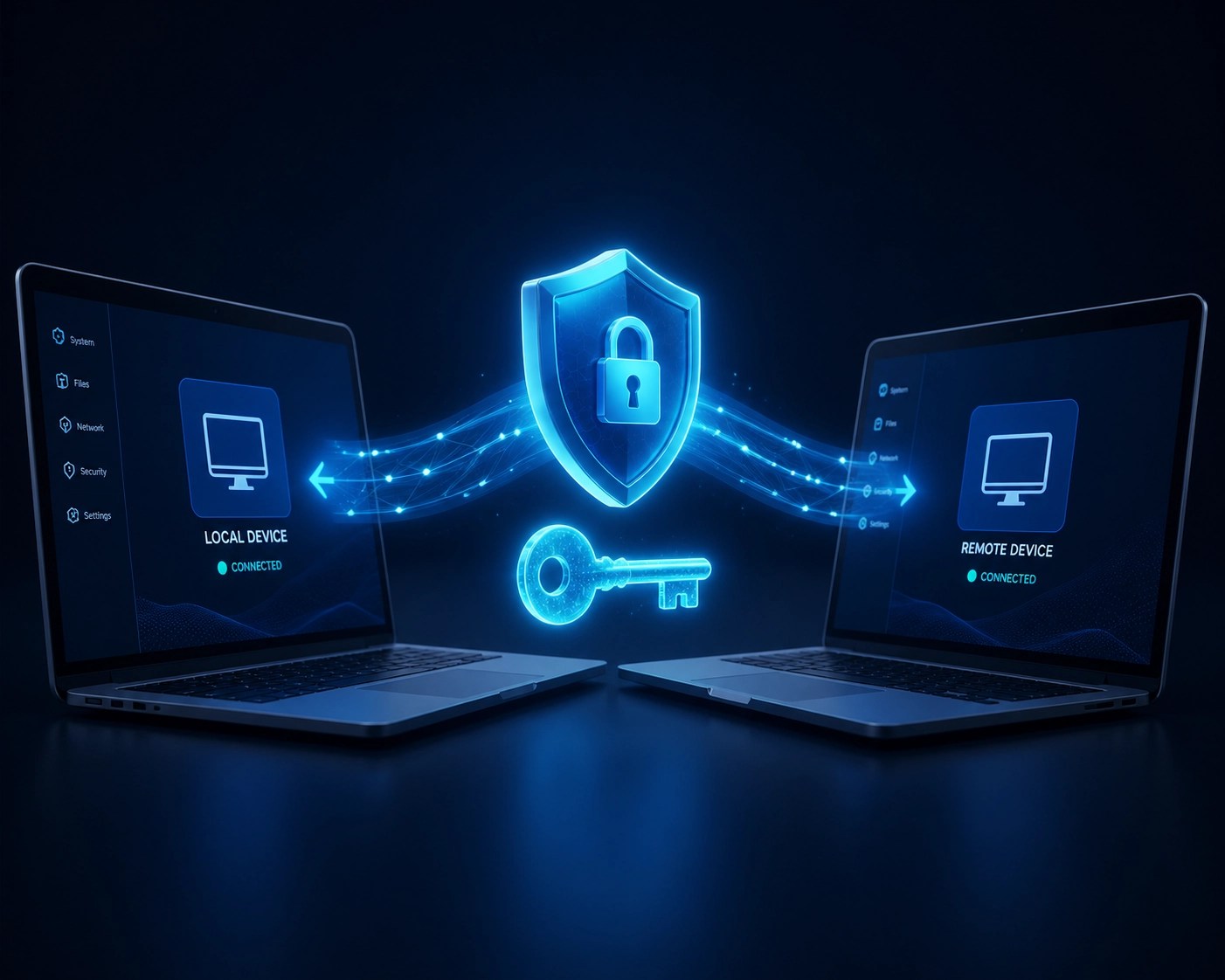
Understanding the security protocols behind Quick Assist ensures that your data remains protected throughout the entire troubleshooting experience. You can monitor every action taken by the remote technician and terminate the session at any moment if you observe unauthorized access to sensitive personal folders. The platform requires explicit permission before granting control, ensuring that the user retains ultimate authority over the device and its contents. Utilizing these integrated security features builds a foundation of trust and reliability, making remote support a safe and viable alternative to bringing your PC to a physical repair shop.
Advanced Remote Access Strategies
Establishing a permanent remote access point through Windows Remote Desktop can enhance your ability to manage files and applications from any location across the globe. This professional-grade feature allows for seamless integration between multiple devices, providing a consistent user experience regardless of the physical hardware being used. You can configure your primary workstation to accept incoming connections by adjusting the system settings and ensuring that the host machine remains powered and connected to a stable network. Implementing a dedicated remote access strategy boosts your operational flexibility and ensures that your digital assets are always within reach, even when you are away from the office.
Exploring third-party alternatives can provide additional layers of functionality for users requiring specialized support features or cross-platform compatibility. Services like RemoteToPC or TeamViewer offer advanced file transfer capabilities and multi-monitor support that can be crucial for complex engineering or creative workflows. You can evaluate these tools based on their encryption standards and ease of deployment to find a solution that aligns with your specific technical requirements and security preferences. Expanding your toolkit with these robust applications provides a comprehensive safety net for your digital operations and guarantees that help is always just a few clicks away.
System Optimization and Preventive Care
Performing regular system maintenance can preemptively resolve many of the issues that typically necessitate a call to a local technician. You can utilize built-in optimization tools to clear temporary files and repair fragmented disk sectors that may be slowing down your overall system performance. Ensuring that all device drivers and security patches are up to date protects your computer from emerging vulnerabilities and improves the stability of your hardware components. These routine maintenance tasks extend the lifespan of your electronics and significantly reduce the likelihood of experiencing a catastrophic system failure during a high-stakes work session.

Implementing a robust cybersecurity strategy further strengthens your defense against technical disruptions caused by malicious software or phishing attempts. You can deploy professional-grade antivirus solutions and enable the built-in Windows Defender firewall to create a multi-layered security perimeter around your data. Monitoring your system for unusual background activity or unexplained resource spikes allows you to identify and neutralize threats before they can cause meaningful damage to your files. Prioritizing your digital hygiene creates a secure environment where your hardware can operate at its peak potential without the drag of unnecessary software conflicts.
Featured Tech: The Ultimate Remote Work Setup
In our latest deep dive on the YouTube channel, we explored the gear that makes remote support and high-performance computing possible. A standout performer this year is the Dell XPS 15 (2026 Edition), which pairs a stunning OLED display with the raw power of the latest Intel processors. Whether you are hosting a remote support session or editing high-resolution video for your Amazon storefront, this laptop provides the thermal efficiency and processing speed needed to handle intensive workloads without breaking a sweat.
We also looked at the Logitech MX Brio 4K Webcam, a game-changer for anyone who needs to show their hardware to a technician or a client with crystal clarity. The low-light performance and ultra-sharp resolution ensure that every detail is visible, making remote diagnostics a breeze. Having the right tools isn't just about luxury; it's about reliability. When your tech works as hard as you do, you spend less time calling for help and more time growing your business.
Elevate Your Brand with Professional Video
At Network Repair1 LLC, we don't just fix computers; we help you sell the tech you love. If you are a brand owner on Shopify or Amazon, you know that a high-quality product video can be the difference between a "maybe" and a "buy now." Our team specializes in creating engaging, professional-grade product demonstration videos that showcase your items in the best light possible. We handle the technical setup, the lighting, and the editing so you can focus on scaling your business.
🚀 Ready to boost your conversions?
✅ High-definition product reviews
✅ Expert tech demonstrations
✅ Tailored content for Shopify and Amazon
✅ Fast turnaround and professional editing
Let's collaborate to make your products stand out in a crowded marketplace. Whether you need a quick social media clip or a deep-dive technical review, we have the expertise and the gear to make it happen.

We’ve done the troubleshooting so you don't have to. Shop the gear we use and recommend for a high-performance setup.
Featured on the YouTube channel:
https://www.amazon.com/shop/networkrepair1?ref_=cm_sw_r_cp_ud_aipsfshop_XV0ER95A5EVVJDPA7W6A_1
For professional inquiries or remote support:
oq@networkrepair1.com