
Maintaining a seamless digital infrastructure is crucial for scaling any modern business and unlocking the secrets of consistent productivity relies on mastering the tools that facilitate remote connectivity. Discovering why your technical assistance fails often requires moving beyond surface-level symptoms to understand the intricate relationship between network latency, outdated software protocols, and misconfigured security permissions. By recognizing that a failed Microsoft Quick Assist session is typically the result of specific environmental barriers rather than random glitches, you can significantly enhance your operational uptime and ensure that your professional remote support interactions translate into immediate system resolution and long-term hardware health. Implementing robust diagnostics and following high-performance troubleshooting workflows allows for the discovery of hidden bottlenecks that often throttle speed and compromise security, ultimately positioning your enterprise for meaningful growth through superior technical resilience and streamlined digital communication.
Understanding Connectivity Barriers
Analyzing the technical landscape of remote support reveals that outdated software versions often stand as the primary obstacle to a successful connection. When your Microsoft Quick Assist application is not running the latest iteration from the Microsoft Store, handshake protocols can fail silently and leave you stuck on a loading screen. Ensuring both the helper and the recipient have synchronized their updates eliminates these common incompatibilities and restores immediate access to troubleshooting tools.
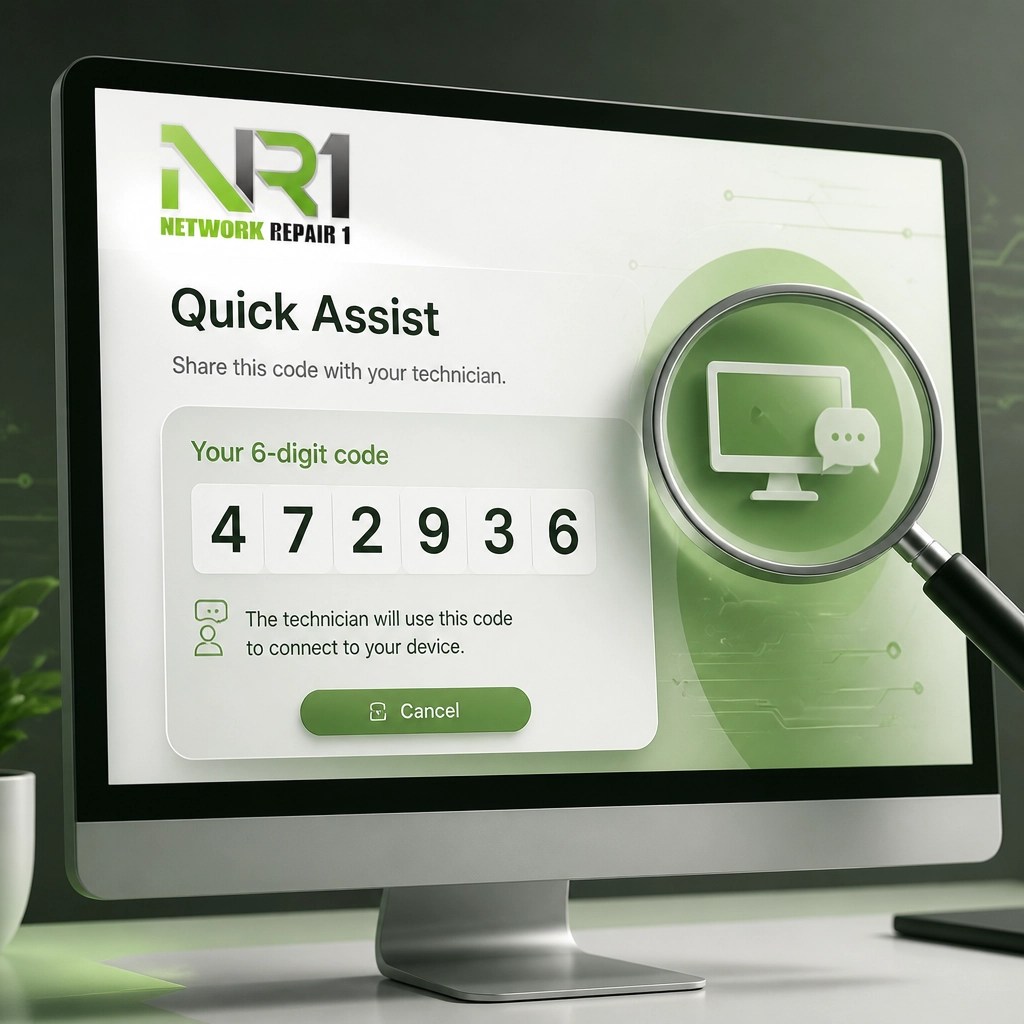
Verifying that network firewalls are not overly restrictive is the next critical step in establishing a stable remote environment. Many corporate security layers are designed to block outbound HTTPS traffic on specific ports, which inadvertently severs the bridge required for high-quality screen sharing and system control. Adjusting these settings to permit secure, encrypted traffic from verified support applications allows for the seamless flow of data and significantly reduces session drops during critical repairs.
1. Outdated Quick Assist Versions
Unlocking the full potential of remote help begins with a simple check of your application version. If the Quick Assist app is missing or hasn't been updated through the Microsoft Store, the connection will likely time out or fail to launch entirely. Keeping this tool current is a crucial prerequisite for any professional IT interaction.
2. Expired Security Codes
Discovering that your 6-digit code is invalid is often a matter of timing rather than a software failure. These codes are designed to expire within ten minutes to maintain high security standards and prevent unauthorized access to your workstation. Generating a fresh code and entering it immediately ensures a secure and successful handshake between devices.
3. Account Sign-In Loops
Significantly hindering the support process are account-related errors where the helper cannot authenticate their Microsoft session. If your organization has strict Entra ID policies, the "Give Assistance" button may remain inactive or loop back to the login screen. Resolving this requires a professional audit of your account permissions to ensure your credentials are authorized for remote support tasks.
4. Aggressive Corporate VPNs
Network repair often stalls when a virtual private network (VPN) creates an impenetrable tunnel that blocks local peer-to-peer communication. Turning off the VPN temporarily can reveal if the connection issues are rooted in your network routing rather than the software itself. This simple adjustment often provides the immediate bandwidth boost needed for high-definition screen sharing.
5. Misconfigured Group Policies
System optimization is frequently blocked by high-level administrative settings that disable remote assistance at the OS level. If your IT department has set "Configure Solicited Remote Assistance" to disabled, no amount of troubleshooting will bypass this security wall. Aligning your internal group policies with your remote support needs is essential for maintaining flexible and responsive tech help.
6. User Account Control (UAC) Freezes
Unlocking the ability to perform administrative tasks remotely is often thwarted by the "Black Screen" effect during UAC prompts. When a support specialist attempts to install software or change system settings, Windows may pause the remote view for security reasons. Instructing the local user to click "Yes" on their physical monitor is a crucial step in maintaining session momentum.
7. Network Latency and Jitter
Enhancing the quality of your support session requires a stable internet connection with low latency. High-performance remote support demands consistent data packet delivery, and switching from a weak Wi-Fi signal to a wired Ethernet connection can solve most lag issues. Closing background streaming applications and heavy cloud backups further optimizes the available bandwidth for your IT specialist.
8. Third-Party Firewall Interference
Meaningful technical assistance often requires temporary exceptions in your third-party antivirus or firewall suites. These security tools can misidentify remote control attempts as malicious activity and terminate the connection without warning. Creating a dedicated exception for professional support tools ensures that your protection remains active while allowing for necessary system maintenance.
9. Hardware Sleep Settings
Discovering that a connection has dropped because the remote computer entered sleep mode is a common but avoidable frustration. Adjusting your power settings to "Never Sleep" while plugged in ensures that long diagnostic scans or software installations can finish without interruption. This small change significantly increases the success rate of overnight or long-distance repairs.
10. Multi-Monitor Configuration Errors
Boosting the clarity of a remote session sometimes involves simplifying your hardware setup. If the remote user has multiple high-resolution displays, the support specialist may experience significant lag or difficulty navigating the desktop. Switching to a single-monitor view for the duration of the support call streamlines the visual data and speeds up the resolution process.
Elevate Your Digital Presence
🚀 Boost Your Brand Visibility:
- 🎬 Professional Product Videos: We create high-impact, cinematic reviews for your Shopify and Amazon listings!
- 📈 Social Media Growth: Leverage our high-quality content to engage your audience on TikTok, Instagram, and YouTube!
- 🛠️ Seamless Integration: We don't just review products: we showcase them in professional, real-world tech environments!
- ✅ Collaborate With Us: Let's work together to make your products stand out with expert storytelling and crisp 4K visuals!
🔥 Maximize Your Tech Performance:
- 🛡️ Cybersecurity Audits: Protect your data with our remote security optimization services!
- 💻 Remote IT Support: Fast, reliable troubleshooting for your home or small business!
- ☁️ Microsoft 365 Setup: Get your team running on the cloud with professional configuration!
We’ve done the troubleshooting so you don't have to. Shop the gear we use and recommend for a high-performance setup. Items featured on the YouTube channel can be found here:
https://www.amazon.com/shop/networkrepair1?ref_=cm_sw_r_cp_ud_aipsfshop_XV0ER95A5EVVJDPA7W6A_1
For professional inquiries, sponsorship opportunities, or remote support requests, contact us directly:
oq@networkrepair1.com