
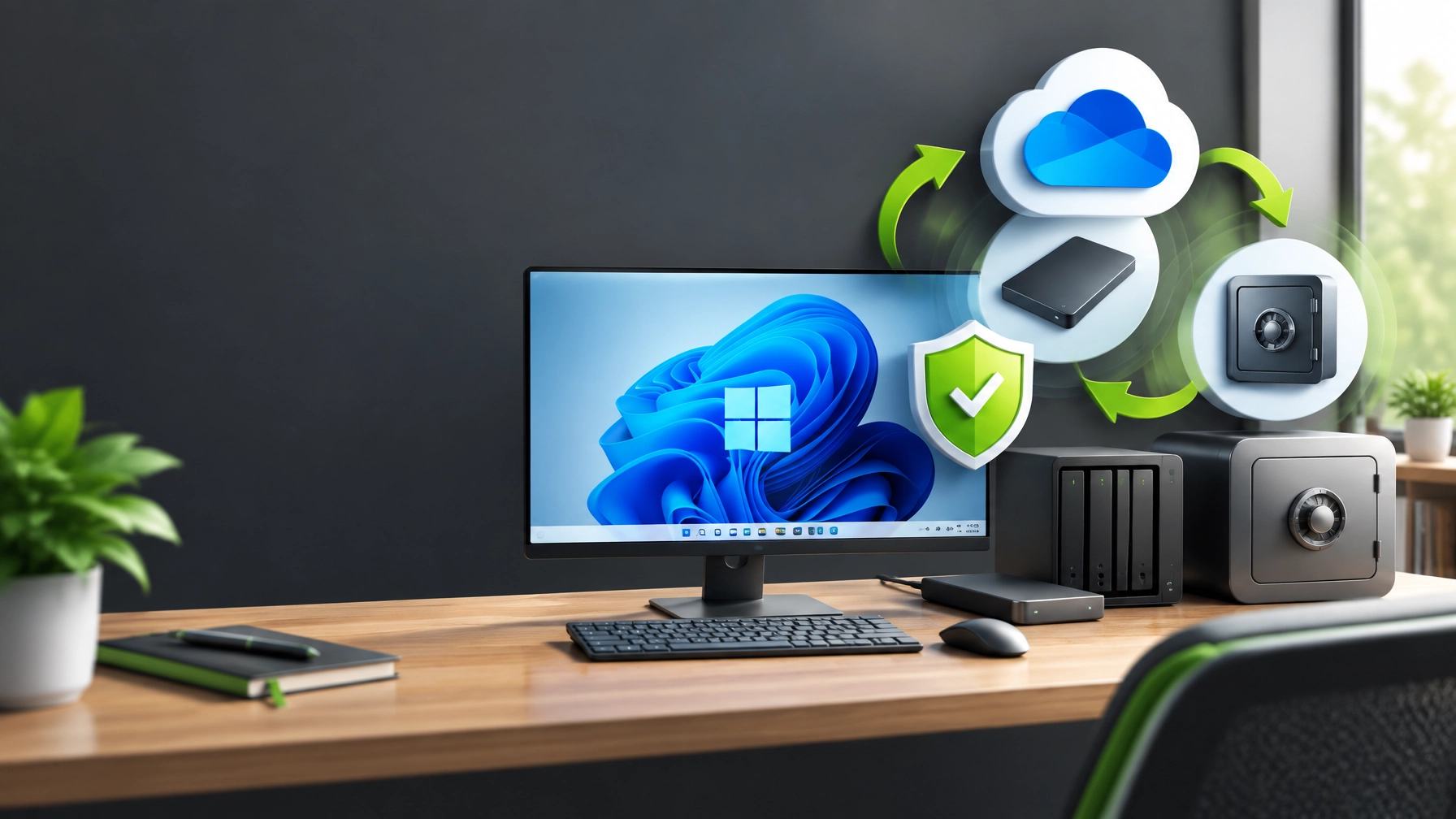
Good morning from NetworkRepair1, where the marathon continues with a workstation tune-up that protects productivity before trouble arrives. Today’s focus is small business IT support with a practical Windows 11 setup that is optimized, recoverable, and ready for real-world interruptions, including hardware failure, accidental deletion, update problems, and ransomware. The goal is simple: keep files accessible, systems responsive, and recovery options available when the unexpected decides to clock in early.
🛠️ Remote Support Tip: Build a Recoverable Windows 11 Workstation
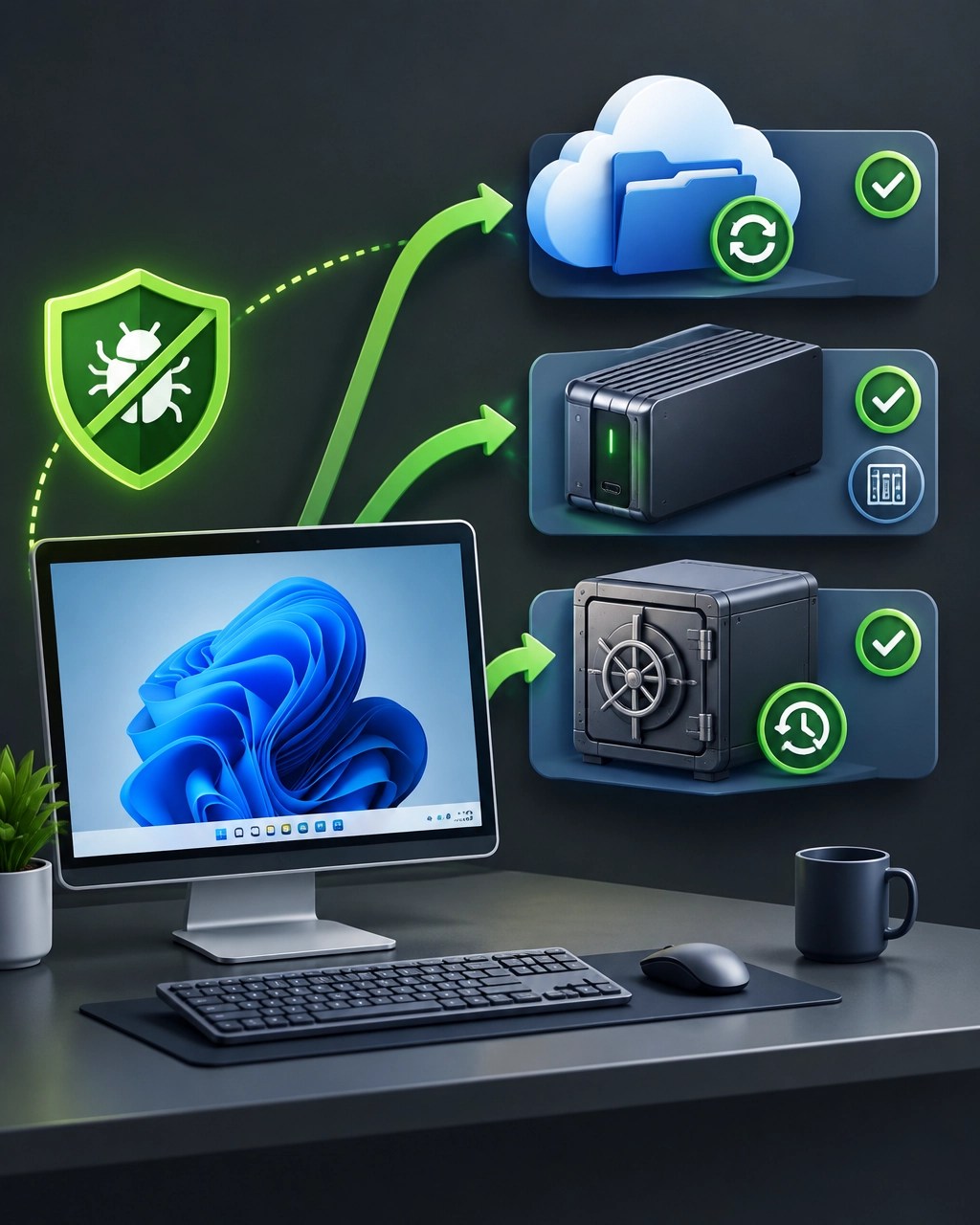
A strong workstation starts with the 3-2-1 backup principle: maintain three copies of important business data, use at least two different storage types, and keep one copy offline, off-site, or protected with immutable storage. In a typical Microsoft 365 environment, the working copy belongs in OneDrive or SharePoint, the second copy belongs on an external drive or NAS, and the third copy belongs in a disconnected, off-site, or immutable location. OneDrive sync improves availability, but sync alone is not a complete backup because deleted, encrypted, or corrupted files can synchronize as well.
Step 1: Move business files into protected locations
Start with OneDrive Known Folder Move and redirect Desktop, Documents, and Pictures into the business Microsoft 365 account. Confirm that the folders display the correct OneDrive path, not only a local C:\Users location, and place shared project files in SharePoint or Teams libraries instead of leaving them stranded on one workstation. Keep important files out of random Downloads folders and unmonitored local directories, because those locations can easily escape normal backup coverage.
Step 2: Confirm OneDrive is actually syncing
Open the OneDrive cloud icon in the Windows taskbar and check for a healthy status, a current sync time, and no unresolved errors. Select View Online, locate a recently updated file, and confirm that the latest version appears in the Microsoft 365 cloud. Check that the correct work account is signed in, Files On-Demand is configured appropriately, and sync is not paused, disconnected, or tied to an expired license.
Step 3: Verify Microsoft 365 licensing and cloud access
Open an Office application, review the signed-in account, and confirm that the assigned Microsoft 365 business license is active. Check OneDrive storage availability, SharePoint access, and the user’s ability to open and edit cloud files from the workstation. A license problem can quietly turn a dependable cloud workflow into a very expensive folder decoration, so account status belongs on every remote computer support checklist.
Step 4: Add the local backup copy
Connect an external hard drive, portable NVMe enclosure, or properly configured NAS, then enable File History through Control Panel > System and Security > File History. Confirm that Desktop, Documents, Pictures, and other approved working folders are included, then verify that versioned files are being created. File History supports file recovery, while a separate system image or managed endpoint backup can support full workstation recovery after major disk failure.
Disconnect the external backup drive when it is not actively being used, especially when ransomware resilience is the priority. A drive that remains permanently connected can become another target during an attack. For a NAS, restrict permissions, protect the administrative account, and use snapshots or immutable retention where the platform supports them.
Step 5: Keep an offline or immutable copy
Complete the 3-2-1 design with a backup that ransomware cannot easily rewrite. Rotate an encrypted external drive to a separate location, use a protected cloud backup with immutable retention, or use storage with object lock and restricted administrative access. Then test a restore, because a backup that has never been opened is more of a hopeful rumor than a recovery plan.
Step 6: Add Windows Security controls
Open Windows Security > Virus & threat protection > Ransomware protection and review Controlled folder access. When enabled and properly configured, it can block untrusted applications from modifying protected folders, while approved business applications can be added to the allowed list as needed. Confirm Microsoft Defender status, review protection history, and enable BitLocker on supported workstations while storing recovery keys in an approved business-managed location.
Step 7: Check restore points and File History
Open System Protection and confirm that restore points are enabled for the system drive. Create a restore point before major driver, software, or configuration changes, remembering that System Restore protects system state rather than serving as a replacement for file backups. Review File History separately and confirm that older versions can be browsed and restored, because file recovery and operating system rollback solve different problems.
Step 8: Run updates and driver health checks
Open Settings > Windows Update, install approved updates, and restart the workstation when required. Review optional driver updates carefully, then use Device Manager to check for warning icons, disabled hardware, outdated network adapters, and display or storage problems. Update firmware and manufacturer drivers through trusted sources, not mystery download sites offering “one-click driver miracles.”
Step 9: Clean up Startup Apps
Open Task Manager > Startup apps and review what loads with Windows. Keep security tools, OneDrive, approved backup agents, and essential business utilities active, then disable nonessential launchers, old updaters, and applications that consume resources without contributing to the workday. A cleaner startup improves boot performance and reduces conflicts that can interfere with cloud sync, backup agents, or endpoint security.
Step 10: Turn on Storage Sense
Open Settings > System > Storage > Storage Sense and configure it to remove temporary files and manage routine clutter. Review Downloads before allowing automated cleanup, move business files into OneDrive or another protected location, and keep enough free space for Windows updates, recovery operations, and active project files. Storage Sense is useful housekeeping, not a backup strategy, but every little bit of disk hygiene helps the workstation breathe.
For businesses that want this process handled through a secure session, NetworkRepair1 provides remote IT support and Quick Assist assistance. The result is a workstation that is faster, easier to manage, and significantly better prepared for recovery.
🏠 Home Office Upgrades 2026: NetworkRepair1’s Checklist
The best home office upgrades 2026 are not always the flashiest gadgets. They are the tools that keep files moving, calls stable, projects protected, and workstations ready for another productive session.
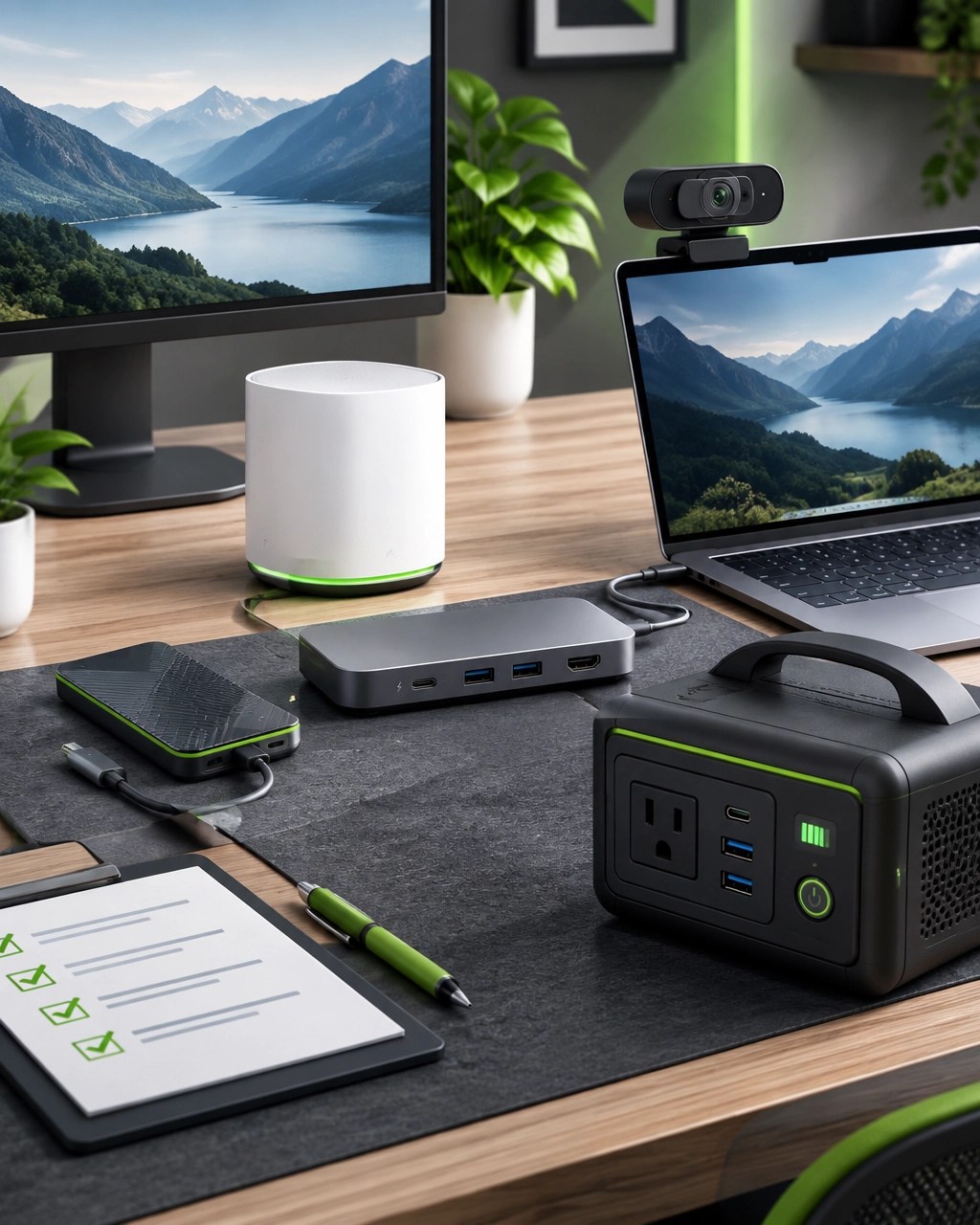
- Portable NVMe SSD: Use fast external storage for backup rotation, active video projects, large transfers, and temporary working files, while keeping critical business data covered by a separate backup plan.
- Wi-Fi 6 or Wi-Fi 6E mesh node: Improve coverage and reduce dead zones for cloud applications, video meetings, and remote IT support sessions, especially when the router lives several rooms away.
- Wired Ethernet drop: Choose a direct wired connection for desktops, editing workstations, NAS devices, and any setup where stable throughput matters more than avoiding one extra cable.
- Single-cable USB-C or Thunderbolt dock: Connect displays, Ethernet, storage, audio, keyboard, and other accessories through one dependable workstation connection, reducing desk clutter and cable gymnastics.
- 1080p or 4K webcam with privacy shutter: Improve client calls, tutorials, product demonstrations, and livestreams while adding a simple physical privacy control.
- UPS or portable power station: Protect the workstation from sudden outages and short interruptions, then maintain continuity for networking gear, storage, monitors, and essential communication equipment.
For portable organization, the Amazon Sling Bag for Kindle remains a previously reviewed pick for carrying a compact device and everyday accessories without turning the commute into a cable archaeology expedition. Browse more recommendations through the NetworkRepair1 shop and the Amazon storefront tech gear collection.
🎥 Product Video Services and Channel Milestones
NetworkRepair1 also helps Shopify and Amazon sellers present products with stronger demonstrations, cleaner visuals, and more engaging digital storytelling. Our Amazon and Shopify product video services are designed for sellers who need platform-aware content that supports product education, brand perception, and conversion-focused presentation.
This month also brings a major celebration: NetworkRepair1 has reached 13,000 YouTube subscribers and surpassed 1.1 million lifetime views. That progress comes from every tutorial, product review, support tip, and creator collaboration shared with the community, and the next mile of the marathon is already underway.

🚀 Let’s Build the Next Setup Together
- 🔧 Remote IT support: Secure troubleshooting, system optimization, network diagnostics, and Microsoft 365 assistance.
- 🛡️ Business resilience: Backup planning, ransomware protection, cloud sync reviews, and recovery readiness.
- 🎥 Product video services: Shopify and Amazon content that can boost visibility and strengthen product presentation.
- 📈 Creator growth: Let’s collaborate, create meaningful content, and expand together.
Follow Along
We've done the troubleshooting so you don't have to. Shop the gear we use and recommend for a high-performance setup.
Items are featured on the YouTube channel: https://www.amazon.com/shop/networkrepair1?ref_=cm_sw_r_cp_ud_aipsfshop_XV0ER95A5EVVJDPA7W6A_1
Let’s collaborate, improve the setup, and keep the marathon moving together.
Leave a Reply