
Implementing advanced remote troubleshooting protocols serves as the foundational pillar for maintaining peak operational efficiency in any modern digital environment. Mastering these techniques allows for the seamless resolution of complex software conflicts and hardware inefficiencies without the necessity of physical intervention. Understanding the synergy between robust remote tools and system optimization reveals the secrets to unlocking a high-performance workflow that eliminates downtime and significantly increases overall productivity. Discovering the most effective ways to leverage built-in Windows utilities and third-party monitoring services can boost your network reliability and enhance your ability to manage distributed tech stacks with professional precision.
The Remote Support Evolution at Network Repair1 LLC
Hey everyone, Octavio here. If you’ve ever sat staring at a spinning blue circle while your deadline screams at you, you know that slow tech isn’t just an annoyance: it’s a profit killer. At Network Repair1 LLC, we spend our days diving into the guts of Windows systems and testing the latest hardware to make sure you never have to deal with a "laggy" workday again. Whether you're a creator trying to render 4K video or a business owner managing a remote team, your gear needs to keep up. Today, we’re blending some insider remote IT secrets with a look at the hardware that actually lives up to the hype.

1. Mastering Windows Quick Assist for Instant Relief
Windows Quick Assist is arguably the most underrated tool in the Microsoft ecosystem. Instead of fumbling with third-party software that requires complex installation, this built-in utility provides a secure, encrypted bridge for remote support. To initiate a session, simply type "Quick Assist" into your Windows search bar and share the six-digit code with your trusted technician. This method bypasses many common connection hurdles and allows for full administrative control, making it the primary choice for rapid diagnostic intervention and real-time system patching.
2. Optimizing Outbound Network Ports
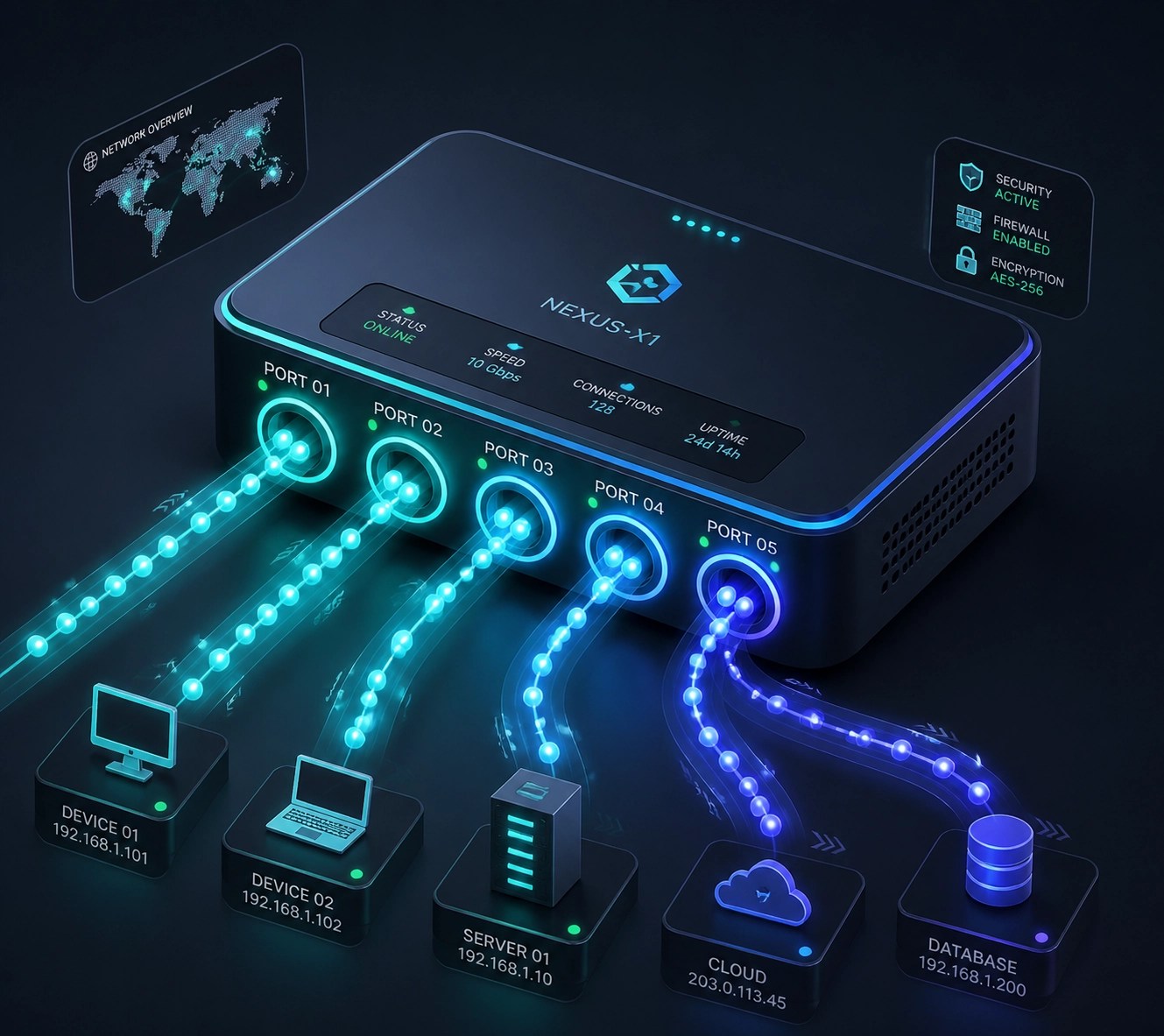
Network bottlenecks frequently stem from misconfigured firewall rules that obstruct essential data packets. Ensuring that outbound ports such as TCP 5222 and 3478 are properly opened is crucial for maintaining the heartbeat of remote monitoring and command services. By refining these network settings, you can reduce latency during remote sessions and ensure that troubleshooting commands are executed without delay. This proactive approach to network hygiene significantly enhances the stability of your remote desktop environment and prevents unexpected disconnects during critical updates.
3. Implementing Driver Hygiene and Rollbacks
Corrupted or outdated drivers are often the silent culprits behind system instability and sluggish performance. Accessing the Device Manager remotely allows you to identify hardware components with exclamation marks and perform clean driver installations. In cases where a recent update has caused instability, utilizing the "Roll Back Driver" feature can immediately restore system functionality. Maintaining a strict schedule for driver audits ensures that your graphics cards, network adapters, and peripheral interfaces are operating with the most efficient instruction sets available.
4. Configuring Remote Power and Sleep Protocols
A common frustration in remote IT support is losing access to a machine because it entered a low-power state or sleep mode. Adjusting the power plan settings to ensure the host computer remains "always on" during support windows is a vital step for uninterrupted troubleshooting. Setting high-performance power profiles through the Control Panel prevents the CPU from throttling, which can drastically improve the speed of system-wide virus scans and disk optimizations performed remotely.
5. Utilizing System File Checker (SFC) and DISM
Repairing corrupted Windows system files can be achieved efficiently through the Command Prompt using the SFC and DISM tools. Running the command sfc /scannow allows the OS to automatically detect and replace damaged files from a local cached copy. If the local image is corrupted, the Deployment Image Servicing and Management (DISM) tool can pull fresh files from Windows Update servers to repair the system image. These tools are essential for resolving deep-seated OS errors that manifest as frequent crashes or slow application launches.
6. Browser Resource Management and Cache Purging
Modern web browsers are notorious resource hogs that can drain system memory and slow down even the most powerful PCs. Remotely managing browser extensions and performing a deep purge of the cache and cookies can free up significant RAM and improve web application responsiveness. For users heavily involved in content creation, ensuring that hardware acceleration is properly toggled within the browser settings can offload processing tasks to the GPU, thereby alleviating pressure on the central processor.
7. Enhancing Security with Professional Password Protocols
Securing the remote gateway is just as important as the troubleshooting itself. Implementing robust authentication methods and avoiding simple passwords ensures that your remote access remains exclusive to authorized personnel. We highly recommend reviewing our password security guide to implement industry-standard protection. Strong security measures prevent unauthorized intrusions that could lead to malware infections or data breaches, which are the leading causes of long-term system degradation.
Gadget Review: The Creator’s Powerhouse Setup
When we aren't fixing PCs, we're testing the gear that goes into them. This month, we’ve been putting two specific items through their paces: the latest high-performance creator laptop and a 4K mirrorless camera that's perfect for product videos.
The High-Performance Laptop: Dell XPS 15 (2026 Edition)
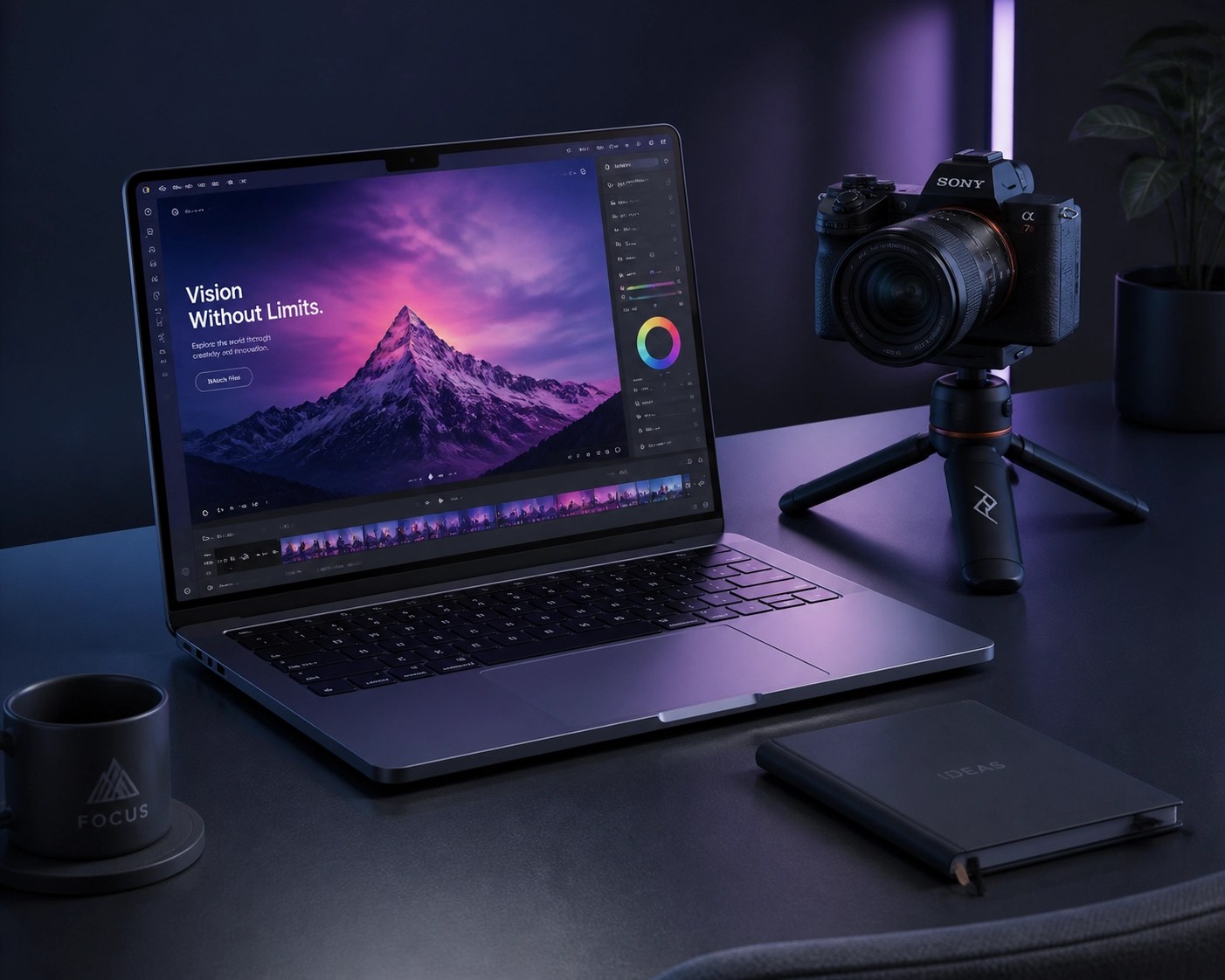
This machine is a beast. With the latest Intel i9 processor and an OLED display that makes colors pop, it’s our go-to for remote support and video editing. The thermal management has improved significantly over previous years, meaning it doesn't throttle when you're running multiple virtual machines or rendering a 10-minute 4K clip. If you're looking for something under a different budget, you can also check out our list of top 10 laptops under $1000.
The Product Video King: Sony ZV-E10 II
For Shopify and Amazon sellers, this camera is a game-changer. The "Product Showcase" setting automatically shifts focus from your face to the item you're holding, making it perfect for the high-quality product videos we produce at Network Repair1 LLC. It's compact, handles low light like a pro, and integrates perfectly with our studio workflows.
Elevate Your Brand with Professional Product Videos
🚀 Maximize Your Conversion: High-quality video content is the most effective way to turn browsers into buyers on Amazon and Shopify.
🎥 Expert Production: We specialize in creating crisp, engaging product videos that highlight every feature of your electronics or gadgets.
📈 Boost Visibility: Combine great video with our YouTube SEO secrets to rank higher in search results and dominate your niche.
💡 Strategic Advantage: Learn why choosing the right platform matters in our breakdown of Amazon vs. Shopify product videos.
🤝 Let’s Collaborate: Our team at Network Repair1 LLC is ready to help you showcase your tech with professional-grade media solutions.
Final Thoughts on Tech Efficiency
Staying ahead of the curve means having both the right software "hacks" and the right hardware in your arsenal. Slow tech is a choice, not a requirement. By mastering remote troubleshooting and investing in gear that actually performs, you're setting yourself up for a frictionless professional experience. Whether you're fine-tuning your network or looking for the next piece of gear to upgrade your office, we've got you covered.
All the items discussed today are featured on the YouTube channel.
Don't settle for subpar tech. Grab the professional-grade gear we trust to keep our networks running fast and secure.
Shop our official Amazon Storefront

Network Repair1 LLC
Tech Support | Product Promotion | Content Creation
📱 Follow Us:
- 📺 YouTube
- 🎵 TikTok
Contact Us:
For remote IT support or product video inquiries, let’s work together to grow your brand.
Email: oq@networkrepair1.com