
Let’s be honest: tech is like that one friend who is super helpful 90% of the time but occasionally decides to communicate solely in riddles and tantrums. Whether it’s your printer suddenly forgetting it was born to print or your PC deciding that today is a "blue screen" kind of day, tech struggles are the ultimate productivity killers. But don't throw your monitor out the window just yet! Here at Network Repair1, we live for these puzzles. Today, we’re diving into a roundup of 5 remote PC troubleshooting tips that will save your sanity and keep your business moving. Plus, we’ve got a killer hardware review and a peek into how we can help you dominate the Amazon and Shopify game with pro-grade video content. Grab a coffee: let’s get fixing.
The Secret Weapon: Unlocking Microsoft Quick Assist
Learn the art of instant remote support by discovering the hidden power of Microsoft Quick Assist, a crucial tool that simplifies unlocking the secrets of your computer’s inner workings without requiring complex third-party software installations. Understanding how to generate a temporary security code and share it securely can significantly boost your ability to receive help or provide it to team members, ensuring that everyone stays connected and productive during critical work hours. By revealing the insider knowledge of how Quick Assist bridges the gap between a frustrated user and a tech specialist, you can effectively resolve software configurations, install essential business applications, and perform meaningful system diagnostics in real-time. This effective approach allows for the immediate implementation of fixes while maintaining a professional and educational stance, ultimately leading to enhanced system performance and a significant increase in overall technical confidence for your entire organization.

1. The "Quick Assist" Magic Trick
Microsoft Quick Assist is essentially the "Bat-Signal" for tech support. It's built right into Windows 10 and 11, and most people don't even know it's there.
To use it, simply hit the Start button and type "Quick Assist." If you're the one helping, you'll select "Help someone" and get a six-digit code. If you're the one in distress, you enter that code. Boom: instant screen sharing. At Network Repair1, we use this to jump into your system (with your permission, of course) and clear out the cobwebs before you can even finish your latte. It’s secure, it’s fast, and it doesn’t require you to download some sketchy .exe from the depths of the internet.
2. Cybersecurity: Don't Be the Low-Hanging Fruit
Remote work is great until a hacker decides your "Password123" is an open invitation. Troubleshooting isn't just about fixing what's broken; it's about preventing a disaster.
The most effective thing you can do right now is enable Multi-Factor Authentication (MFA) on everything. Seriously. If your email or your Microsoft 365 account isn't asking for a second code on your phone, you're leaving the front door unlocked. We also recommend a quick audit of your "Startup" apps. If you have twenty programs launching the moment you turn on your PC, you’re not just slowing down your boot time: you’re increasing your attack surface. Keep it lean, keep it mean, and keep it secure.
3. System Optimization: The Digital Spring Clean
Is your PC sounding like a jet engine about to take off? That’s usually a sign that your system is working too hard for no reason.
Start by checking your Task Manager (Ctrl + Shift + Esc). Look for the "Startup" tab and disable anything you don't use daily. You’d be surprised how much memory that "Random Update Checker" from 2018 is eating. Next, run a Disk Cleanup. It sounds old-school, but clearing out temporary files and system cache can significantly boost your performance. If you want a more deep-dive optimization, that’s where our Remote IT Support shines: we can tune your registry and optimize your network settings to ensure you're getting every ounce of power out of your hardware.
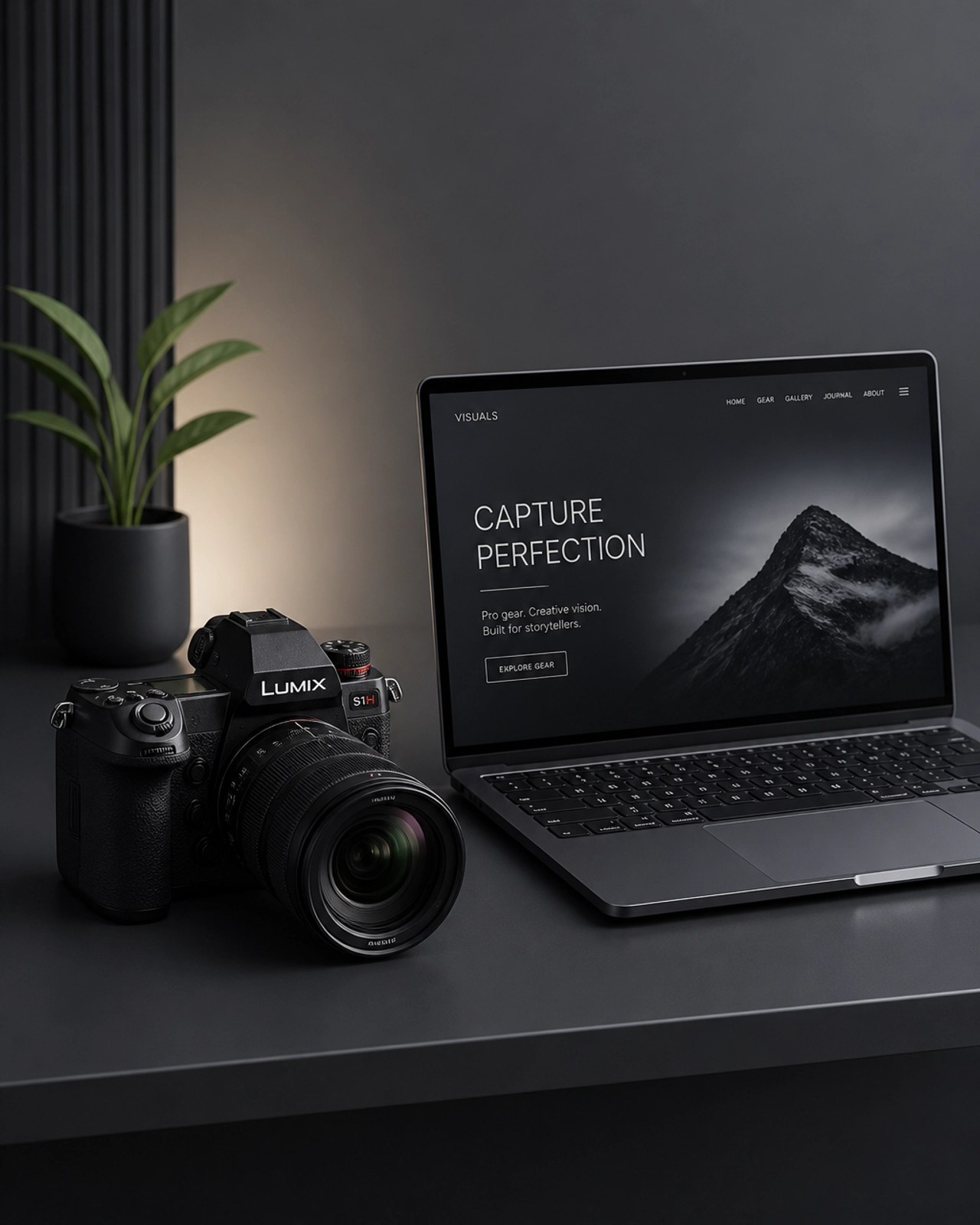
4. Hardware Spotlight: The Creator’s Powerhouse
Speaking of hardware, we’ve been putting the latest "Creator Edition" laptops through their paces. If you’re a business owner looking to produce content for Shopify or Amazon, you need a machine that doesn't choke when you open Premiere Pro.
We recently tested a setup featuring a high-refresh-rate OLED display and an NVIDIA RTX series GPU. The difference is night and day. Colors are more accurate (crucial for product reviews!), and render times are cut in half. Whether you're a photographer, a YouTuber, or a small business owner trying to make your products pop on social media, having the right gear is half the battle. We’ve curated a list of the exact specs we recommend for a high-performance setup that won't break the bank but will definitely break the competition.
5. Network Diagnostics: The "Have You Tried Plugging It In?" Rule
It’s a cliché for a reason. Before you call us in a panic because the internet is "gone," check your physical connections.
A loose Ethernet cable or a router that hasn't been rebooted in six months is often the culprit. For remote support to work effectively, your network needs to be stable. We suggest doing a quick speed test. If your upload speed is under 5Mbps, screen-sharing sessions are going to be a laggy nightmare. If you're constantly fighting with your Wi-Fi, it might be time for a mesh network upgrade. A solid network is the foundation of everything we do, and we’re here to help you lay that groundwork.

Boost Your Brand: Professional Content Creation
🚀 Unlock Your Product's Potential: We don't just fix computers; we make your products look incredible.
🎥 High-Quality Video Production: Our team specializes in creating engaging product reviews and tutorials that convert.
📈 Expand Your Social Presence: From TikTok to YouTube, we help you tell your brand's story.
🤝 Let's Collaborate: We work with Shopify and Amazon sellers to create content that drives sales.
✨ Professional Storytelling: Together, we can bridge the gap between technical expertise and digital influence.
Ready to see what we can do? Check out our Video Services to see our latest work!
We’ve done the troubleshooting so you don't have to. Shop the gear we use and recommend for a high-performance setup.
Featured on the YouTube channel: https://www.amazon.com/shop/networkrepair1?ref_=cm_sw_r_cp_ud_aipsfshop_XV0ER95A5EVVJDPA7W6A_1
For collaborations or support inquiries: oq@networkrepair1.com