
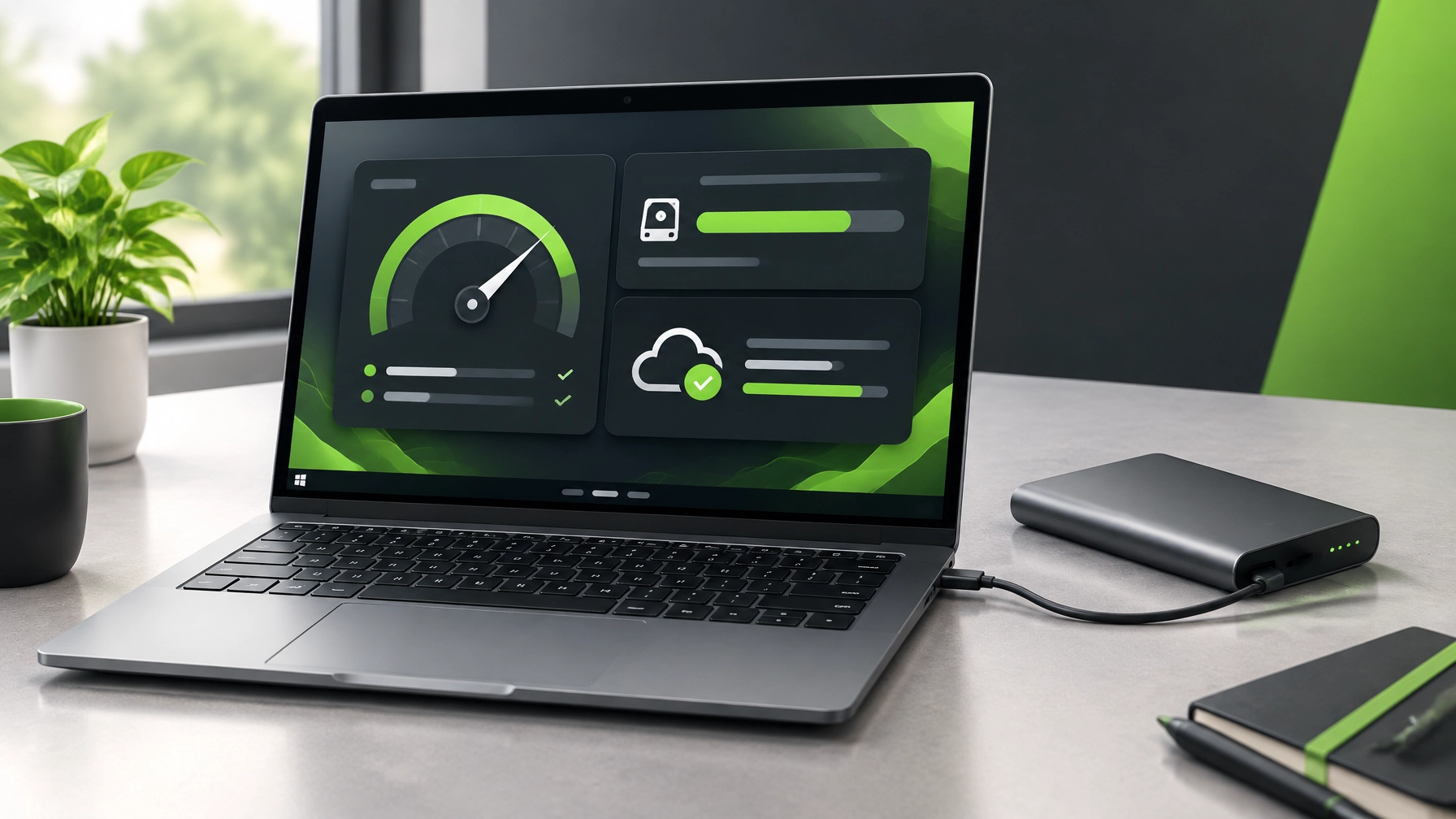
Windows performance rarely comes down to one dramatic fix; more often, small amounts of digital clutter quietly pile up until every boot, sync, and app launch feels like it’s running a lap behind. Today’s field notes focus on keeping Windows 11 responsive and Microsoft 365 files in sync: review startup apps in Task Manager, clear temporary files with Storage Sense, preserve healthy free space on the system drive, and install Windows updates on a sensible schedule. Check Task Manager’s Processes view for CPU, memory, or disk hogs, then close apps that are not needed, rather than guessing which one is slowing things down.  In Settings, System > Storage shows what is using local disk space, while Storage Sense can help clear temporary files; review its settings before running cleanup, and keep enough free headroom for updates, apps, and everyday work instead of letting the system drive run nearly full. Then check Settings > Windows Update and install updates at a time that suits the workday, allowing a restart when required. For Microsoft 365 and OneDrive, read the cloud icon’s status before assuming files are current: a paused sync stays paused until resumed, and a quota that is full can prevent new uploads, edits, or syncing. Pause OneDrive when a connection or workload makes syncing inconvenient, then resume and verify that pending changes complete; avoid treating pause as a fix for a persistent error.
  Check cloud storage usage separately from the laptop’s local disk: remove unneeded items only after confirming what they are, and remember that deleting synced files can remove them from other connected devices too. When a file is online-only, it can save local disk space, but make sure important work is available offline before traveling or disconnecting. Microsoft’s Windows performance guidance, Storage Sense instructions, and OneDrive sync troubleshooting offer a reliable path through these routine tune-ups. For mobile productivity, the Anker 737 Power Bank (PowerCore 24K) is a substantial backup-power option: Anker lists a 24,000mAh capacity, two USB-C ports, one USB-A port, and up to 140W total output, with a US direct price of $109.99 at the time of writing. Its display and high USB-C output can make it useful when compatible laptop charging is part of a mobile work setup, while the 630g weight means it is a serious battery, not a featherweight pocket accessory. TechRadar’s independent review found useful high-output performance but also flags the practical trade-off: the unit is large and heavy, and it does not provide UPS mode. Reality check: skip it if the main goal is a light phone-only power bank, if the laptop does not support USB-C charging, or if the price and weight do not fit the work kit; reaching the full 140W also depends on compatible hardware and a suitable cable. Product specifications and pricing can change, so confirm details before buying.
Daily Links
- Microsoft: Tips to improve PC performance in Windows
- Microsoft: Manage drive space with Storage Sense
- Microsoft: Fix OneDrive sync problems
- Microsoft: Pause and resume OneDrive sync
- Microsoft: Manage Microsoft storage quotas
- Anker: 737 Power Bank (PowerCore 24K) specifications and current listing
- TechRadar: Anker 737 Power Bank independent review
Grow with Network Repair1
🎉 13,000 YouTube subscribers and 1.1 million+ lifetime views, thank you for helping our community grow.
🎥 Shopify and Amazon product video services: Let’s collaborate to showcase products with engaging content, together.
💻 Remote IT support: Get help with computer troubleshooting, Microsoft 365, cloud setup, and more through our remote services.
📞 805-723-9608
Gear Worth a Look
Don't settle for subpar tech. Grab the professional-grade gear we trust to keep our networks running fast and secure.
The items mentioned are featured on the YouTube channel.
Amazon Storefront
Leave a Reply